
Customizing your AI prompts for charting
Why customizing your AI prompts matters
Embodia's AI Charting feature generates the starting point of a chart entry from the transcript of a recorded consult. The quality of that draft is influenced by the instructions the AI is given. Those instructions are called prompts.
Embodia's default prompts are deliberately conservative and work well for most clinics. But no two practices document identically. A pelvic health clinic and a sports rehabilitation clinic capture different findings, use different terminology, and structure their notes differently. Customizing your prompts closes that gap.
When your prompts reflect how you actually document, you get:
- Chart drafts that need fewer edits before signing
- Consistent documentation
- Accurate capture of the clinical details that matter to you
- More reliable transcription of the terminology, technique names, and proper nouns specific to your setting.
Note: AI-generated chart content is a starting point, not a finished note. Always review and correct the output before signing the chart entry. Refining your prompts reduces how much correcting you need to do, it does not remove the need to review.
How prompts work in Embodia AI Charting
A Large Language Model (LLM) generates the chart content. To produce something useful, it needs to know what task it is performing and what a good answer looks like. Embodia assembles that instruction from two layers you control:
- The general prompt. Clinic-wide, set once by the clinic manager. It establishes the role the AI is playing, the setting it is documenting, and the rules it must follow across every chart entry your clinic generates.
- The question-level prompt. Set individually on each question within a chart item. It tells the AI what to extract for that specific field and how to phrase it.
Think of it as scope: the general prompt governs behaviour across all charts, and question-level prompts handle the detail of individual fields. Start with the general prompt if you want to change the overall character of your notes. Move to question-level prompts when one specific field keeps coming back wrong.
Editing the general prompt
The general prompt applies to every chart entry generated with AI across your clinic, so it is configured by the clinic manager rather than by individual practitioners.
- Go to Charting > AI Charting
- Select Configure
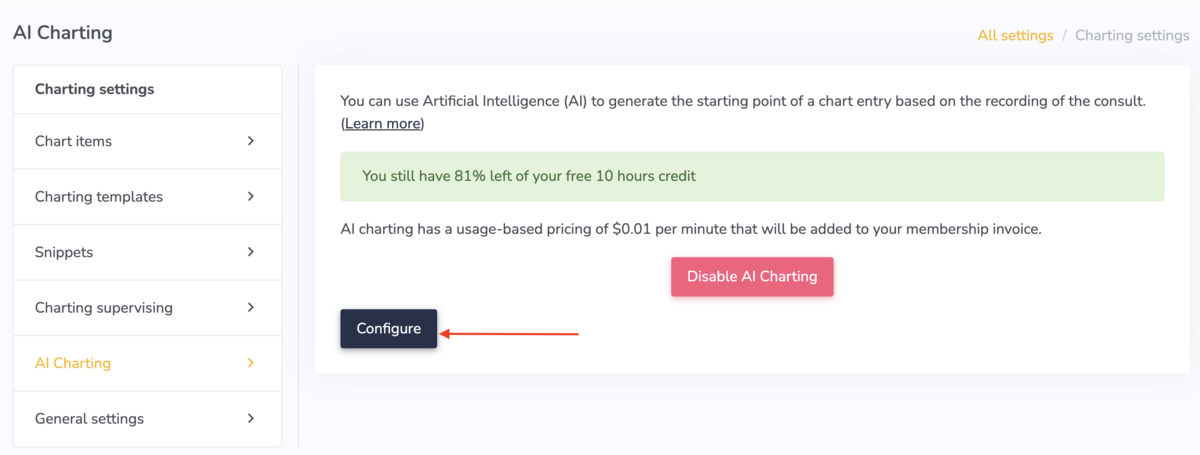
The General prompt field appears with the current default prompt displayed above it for reference:
You are a helpful clinical assistant. You will be provided with a transcript of a consult recording between a practitioner and one or more patients, and asked to generate chart notes that the practitioner will store in the electronic medical system based on a template. Do not make up any information. Only answer a question if you can confidently deduce the answer from the transcript; leave it blank otherwise.
To use the default, leave the General prompt field blank. To override it, enter your own prompt in the field. Whatever you enter replaces the default in full, it is not added to it, so anything you still want the AI to do must be written into your version.
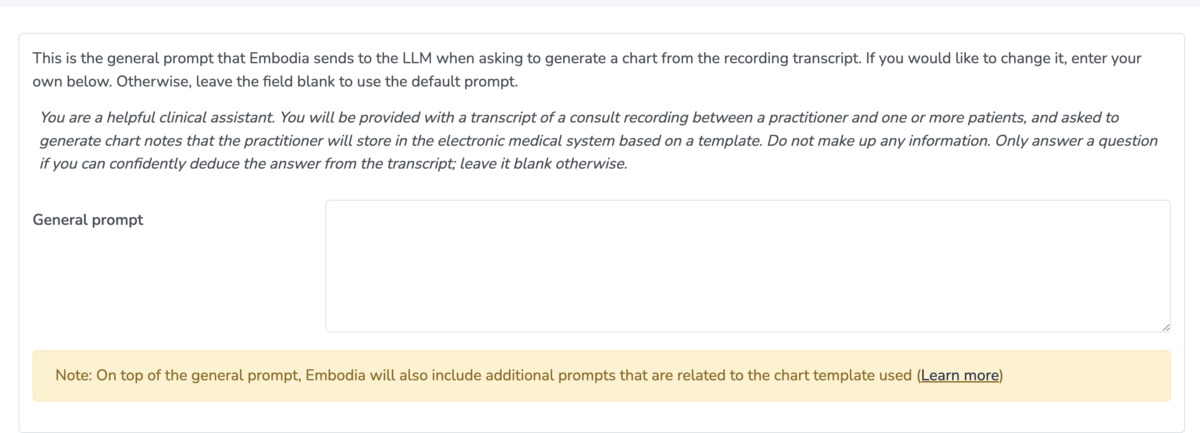
Adding custom vocabulary for transcription
Below the general prompt on the same Configure screen is the Custom vocabulary field. This one does not shape the chart note, it improves the transcript the AI is working from.
Transcription engines rely on a standard dictionary. Anything outside it, such as technique names, outcome measure acronyms, drug names, practitioner and clinic names, local referral partners, is where transcripts most often go wrong. A misheard term does not just look untidy in the transcript; it propagates into the chart draft, because the AI can only work with the words it was given.
Add any words or phrases your recordings routinely include that would not appear in a standard dictionary, one word or phrase per line.
Terms worth adding include:
- Outcome measures and their acronyms: LEFS, DASH, NPRS, ODI, WOMAC.
- Manual therapy and technique names: Mulligan, Maitland, Graston, dry needling, IASTM.
- Practitioner names, your clinic name, and the referring clinics or physicians you work with regularly.
- Condition names and anatomical terms specific to your caseload that are frequently mistranscribed.
- Any equipment, product, or program names used in your sessions.
Select Submit to save. The one Submit button saves both the General prompt and Custom vocabulary fields.
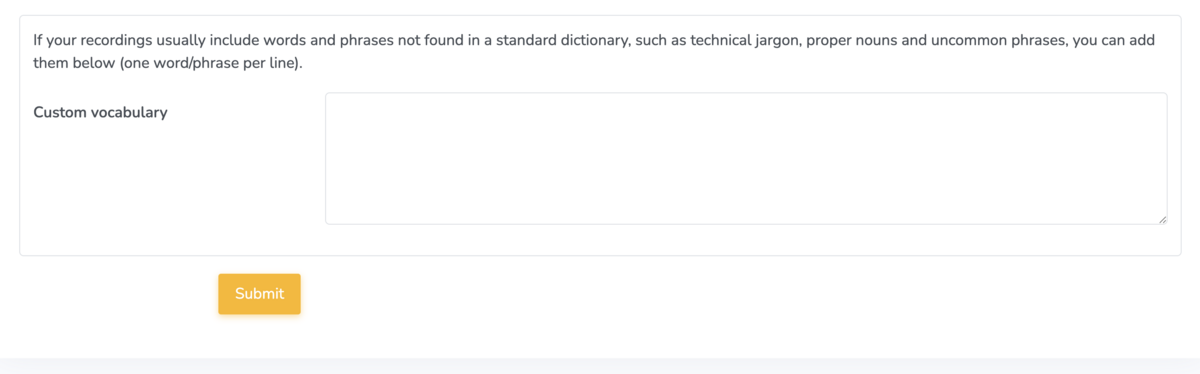
Build this list over time rather than trying to complete it in one sitting. When you review a transcript and spot a term that came through wrong, add it.
Customizing prompts for individual chart questions
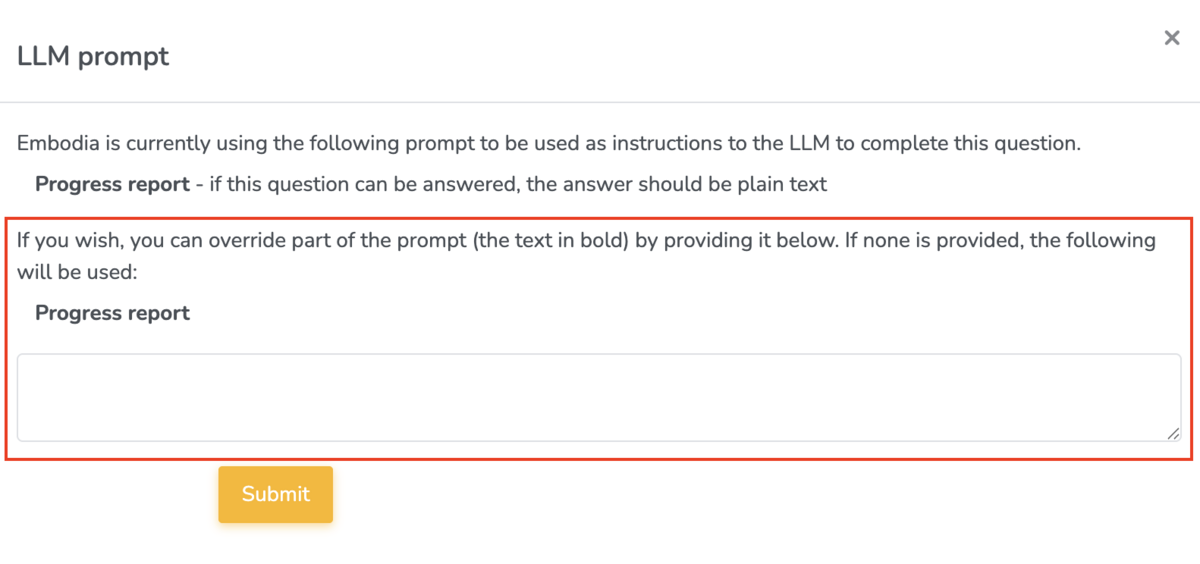
Each question in each chart item carries its own prompt. By default, Embodia uses the question itself as the prompt. If you’d like to customize it, click “Change LLM prompt” when creating or editing a chart item:

In the popup form, you can override part of the prompt (the text in bold):
Tips for Effective Prompts
When customizing AI prompts, following a few key guidelines will help improve accuracy and usefulness.
- Specificity - Provide clear and thorough instructions to the LLM—similar to how you would direct an assistant who is new to clinical documentation. The AI uses your instructions to extract and generate the correct information from the transcript. The more specific and precise the prompt, the better the AI can complete the task.
- Include Relevant Details - Specificity comes from detail. If the prompt doesn’t clearly describe the information you want for a chart item, the AI may miss or skip it. The more detailed you provide (e.g., examples, possible responses, or categories), the more accurately the AI can retrieve and populate that data.
- Review and Refine - AI charting is a tool that improves with use and refinement. Always review the AI’s output to identify any missing or incorrect information. If you notice recurring issues—such as an aggravating factor that’s frequently omitted—update the prompt to include it as an example or expected answer. Small adjustments make the prompt more effective over time.
Writing and refining prompts helps the AI generate more accurate, relevant, and consistent responses, which reduces the need for manual corrections and saves clinicians valuable time. Clear prompts ensure important clinical details aren’t missed and that documentation aligns with each clinician’s style and workflow. Over time, this refinement improves efficiency, supports better clinical decision-making, and makes charting a faster and more reliable process.
Example prompts
Now let's go through some examples of how to modify the LLM prompt for 4 of the 5 question types that Embodia's AI assistant can use, which are listed below:
- Free text - Multiline text
- Single Answer
- Multiple Answer
- Range
The 5th question type that can be used by Embodia's AI Assistant is 'Free text - Single line text'.
All of the example chart items in this guide are available as templates on Embodia. Learn more about pre-built chart items in this guide.
1. Free text - Multiline text
Base Prompt Example 1: Diet and nutrition - What is your diet like?
LLM Prompt: Using the patient’s response, summarize their diet and nutrition habits in a concise, professional tone suitable for a physical therapy chart note. Focus on patterns relevant to rehabilitation or physical health.
More detailed and clinical LLM Prompt: Analyze the patient’s response and create a detailed nutrition summary for a physical therapy chart note. Include dietary patterns, nutritional quality, hydration, and any factors that may impact tissue healing or energy levels.
Base Prompt Example 2: Movement - How much exercise and movement do you get in a typical day/week? Free text
LLM Prompt: Using the patient’s response, summarize their exercise and movement habits in a concise, professional tone suitable for a physical therapy chart note. Focus on frequency, duration, type of activity, and relevance to their rehab goals.
Base Prompt Example 3: Subjective
LLM Prompt: Using the patient’s own words, summarize all relevant self-reported information, including:
- Current symptoms (pain, stiffness, fatigue, swelling, etc.)
- Functional limitations (what activities are difficult or painful)
- Progress or changes since the last visit
- Aggravating and relieving factors
- Patient goals or concerns
Use professional, concise, and trauma-informed language appropriate for the Subjective portion of a SOAP note.
Do not include objective findings or analysis—focus only on the patient’s self-report.
Base Prompt Example 4: Objective
LLM Prompt: Using the session transcript, write a detailed summary of all measurable and observable findings, including:
- Physical assessments (range of motion, strength, flexibility, balance, posture)
- Observations during movement or exercises
- Pain responses or compensations
- Treatment interventions performed during the session (manual therapy, exercises, modalities)
- Quantitative data (reps, sets, resistance, duration, pain ratings, gait distance, etc.)
Use concise, professional clinical language appropriate for the Objective portion of a SOAP note.
Avoid patient self-reports, opinions, or interpretations — focus only on what was objectively measured or observed.
Base Prompt Example 5: Analysis (Assessment)
LLM Prompt: Using the session transcript, write an analysis statement summarising the critical information from the subjective and objective sections, this should include:
- The current presentation of the patient including current symptoms, key findings, and functional limitations.
- A short summary in significant changes in patient condition from the previous session
- A clinical impression or stated differential diagnosis including any primary causes.
Use professional, concise, and trauma-informed language appropriate for the Analysis portion of a SOAP note. Avoid restating data verbatim; focus on interpretation and clinical reasoning.
Base Prompt Example 6: Plan
LLM Prompt: Using the session transcript, outline the plan of care based on the analysis/assessment section.
- Outline treatment frequency and duration: Specify how often and for how long the patient will continue therapy (e.g., 2x/week for 4 weeks).
- Describe planned interventions: Include specific therapeutic exercises, manual techniques, neuromuscular re-education, gait training, modalities, or patient education to be continued or added.
- Set short and long-term goals: Identify measurable goals that align with functional outcomes
- Adjust plan based on progress: Indicate any changes to exercise intensity, focus areas, or progression criteria based on the patient’s current response to treatment.
- Include home exercise program (HEP): Specify updates or instructions for independent exercise between sessions.
- Plan for reassessment or referral: Note when re-evaluation will occur or if referral to another healthcare provider is indicated.
Use professional, concise, and trauma-informed language appropriate for the Plan portion of a SOAP note. Avoid restating data verbatim; focus on interpretation and clinical reasoning.
2. Single Answer
The following examples of a Single answer question are part of the chart item ‘Medical history’
Base Prompt Example 1: Are you currently being seen by another healthcare professional?
- Yes - if yes, who are your current providers
- No
This prompt is already clear and requires no further editing.
Base Prompt Example 2: Unexplained weight loss?
- Yes - provide additional details
- No
Same here. This prompt is already clear and requires no further editing.
Multiple Answer
Base Prompt: Select which treatment was provided and add additional information as needed.
Here is an example of what this multiple answer question looks like when you are charting:
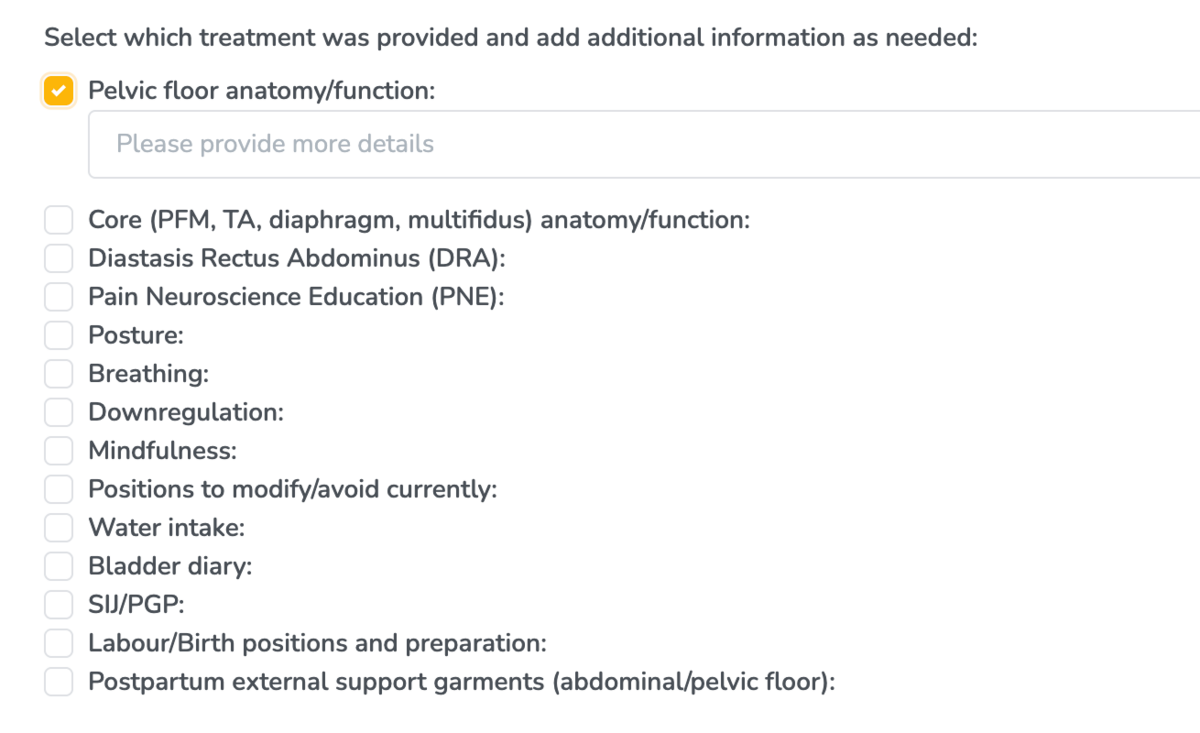
This prompt doesn't require any editing because it is clear as is.
Range
The following example is taking from the chart item '5 Pillars of Health'
Base Prompt: Daily stress - Scale of 0-10

LLM Prompt: Identify the patient’s reported daily stress level on a 0–10 scale. If a number is provided, extract it directly. If the patient gives a descriptive answer (e.g., “pretty high” or “manageable”), infer an approximate number (0–10).
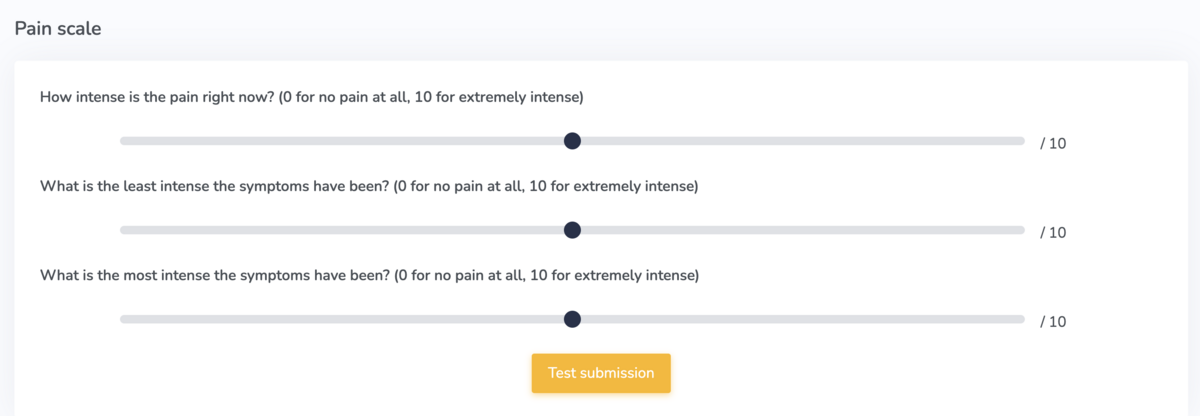
Now let’s try an example with pain scales. This example is taken from the chart item 'Pain scale'.
Base Prompt:
- How intense is the pain right now? (0 for no pain at all, 10 for extremely intense)
- What is the least intense the symptoms have been? (0 for no pain at all, 10 for extremely intense)
- What is the most intense the symptoms have been? (0 for no pain at all, 10 for extremely intense)
Here’s an example of the chart item and what it looks like on Embodia when you’re charting:
LLM Prompts:
- Identify the patient’s reported intensity of pain on a 0–10 scale. If a number is provided, extract it directly. If the patient gives a descriptive answer (e.g., “pretty high” or “manageable”), infer an approximate number (0–10).
- Identify the least intense patients reported symptoms have been on a 0–10 scale. If a number is provided, extract it directly. If the patient gives a descriptive answer (e.g., “pretty high” or “manageable”), infer an approximate number (0–10).
- Identify the most intense patients reported symptoms have been on a 0–10 scale. If a number is provided, extract it directly. If the patient gives a descriptive answer (e.g., “pretty high” or “manageable”), infer an approximate number (0–10).